
Where are the holiday hours?
On Google Search and Maps results, these are the orange or green “Holiday hours” on local listings. Below is an example.
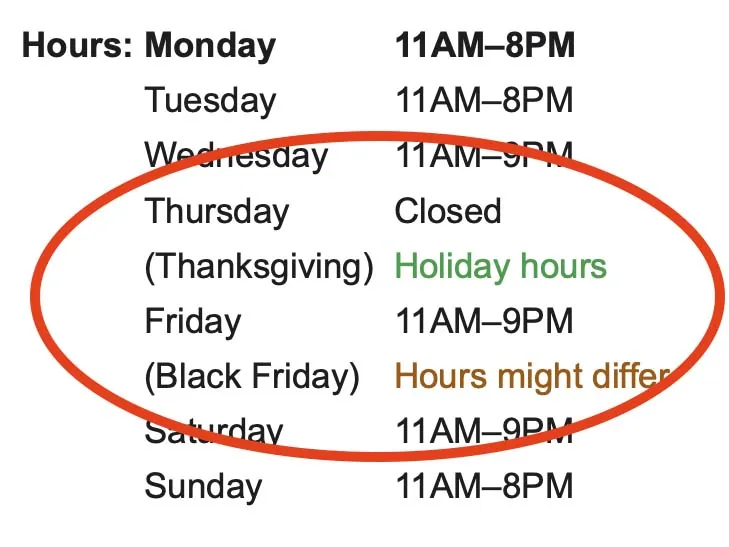
The green “Holiday hours” label means the listing owner specifically confirmed their hours for that day.
The orange “Hours might differ” label means the listing owner has not confirmed their hours. The hours shown are their typical hours for that day of the week, but because of the holiday, their hours may differ!
Do I need to update if my hours are the same?
We still recommend updating your holiday hours. If you don’t, visitors to your listing will wonder whether or not you’re open, and the “hours might differ” message can be confusing. What if you’re actually open, but they think you’re closed and take their business elsewhere? Conversely, what if you’re actually closed, but your listing shows you as “open” and people show up at your business? How would that reflect on your brand’s reputation?
How do I update my holiday hours?
Google renamed Google My Business to Google Business Profile, and you can now edit it right from Google Search or Maps. These step-by-step directions come from a Google support article. On your computer, sign in to the Google Account you use to manage your Business Profile.
- Find your Business Profile. Search Google for your exact business name, or search for
my business. - Open your business information. Near the top, click Edit profile, then Business information.
- Go to hours. Near the top, click the Hours tab.
- Choose holiday hours. Under “Business hours,” click Holiday hours.
- Select the holiday date. To confirm a suggested holiday, click Review. To set a custom date, click Add a date and enter the date. For dates you’ve already set, scroll to the existing date.
- Update your hours. If you’re open, check the box next to the date and enter times in “Opens at” and “Closes at.” If you’re closed, uncheck the box. To add multiple sets of hours, click More, then Add hours +.
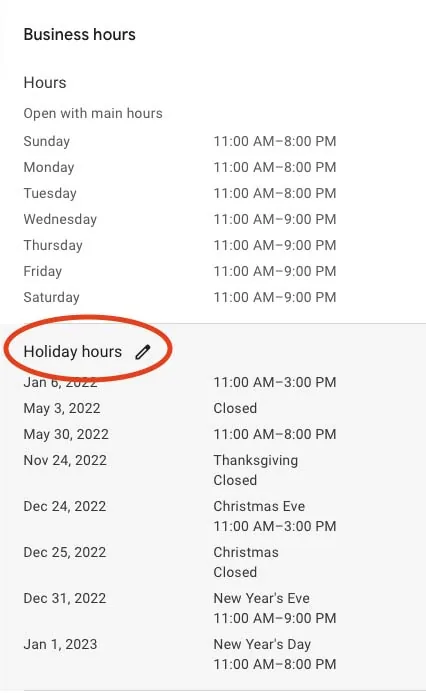
- Click Save. Your hours then appear in the “Hours” tab of your business information, under “Holiday hours.”
Here’s the screen you’re looking for as a listing owner:
I’m too busy to do this
Leighton Smith at Pioneer Media is ready to help! We manage several Google listings for our clients. If you need help with your holiday hours, let’s chat before it’s too late!

About the author
Leighton Smith is Pioneer Media’s website designer, web developer and webmaster, based in East Tennessee. As a solopreneur, he is each client’s one point of contact and has built hundreds of websites since learning to code in 2006.